Care Plan Template
Care plan templates describe in what order care activities should be planned. Members can start their care plan from a care plan template.
Corresponds to FHIR PlanDefinition.
A template consists of a set of actions. These actions can be activities, questionnaires, tasks or custom actions.
Let's go over all the configurable fields:
Title
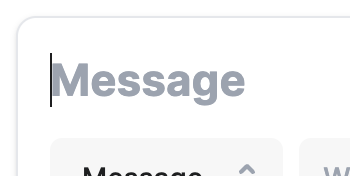
The title is an internal note for editors. It's used in the dropdown for planning an activity based on another activity. It's recommended to choose a title as it make the planning easier to grasp. When left empty, it will be autofilled with an excerpt of the message or the title of the questionnaire.
Activity type
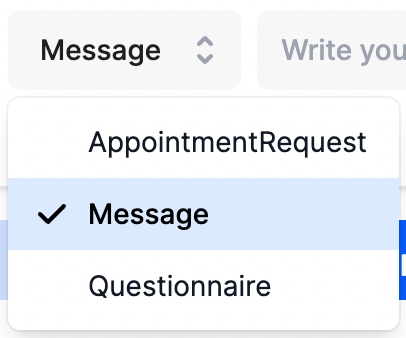
The activity type decides what the end user is expected to do. This feature has been designed in a way that more activity type can be added in the future, even custom types. Here is the list of current types:
AppointmentRequest
Goal: The user should plan a consultation. Note: this can be targeted to both patient/caregiver.
Options:
- Appointment title: What title/type/topic is this appointment about?
- Suggested date: Choose the moment when the appointment should take place. This is just a hint, it's up to the user & scheduling application to set a date.
Message
Goal: The user should read a message. This message may contain a link to an article slug. Depending on the CMS that's being used, that article can contain rich text, videos or more external links.
Options:
- Message: The message itself. The UI may use the first line as an excerpt.
- Linked article: Choose an article from the list of registered articles.
Questionnaire
Goal: The user should fill in a questionnaire. It can only be submitted once.
Options:
- Questionnaire: Choose a questionnaire from the list
Planning
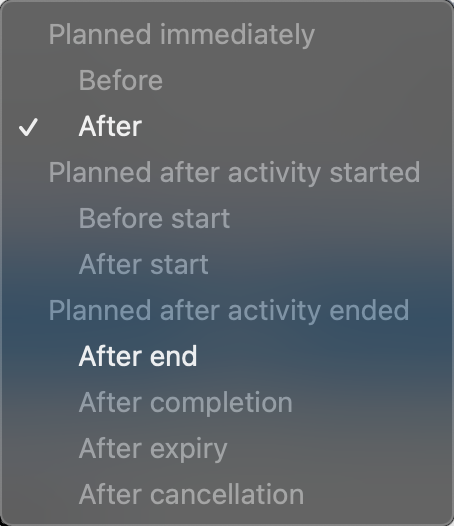
Actions may be planned before or after other actions, or based on expiry/completion. This allows you to plan the actions sequentially or time-based.
Options:
After: when the related action is planned, immediately plan this action with the given offset.After end: when the related action is completed/expired, plan this action with the given offset.- Other options are currently disabled in production.
Start
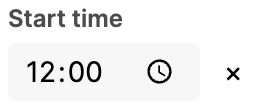
Every action is triggered at a specific (milli-)second which may result in awkward timings in a calendar view. Use this to snap the planned time to the start time within the same day. The timezone of the user will be taken into account.
Options:
After: when the related action is planned, immediately plan this action with the given offset.After end: when the related action is completed/expired, plan this action with the given offset.- Other options are currently disabled in production.
Examples
#InsertExamples